Module 6 · Editing Without an Editor
The plain-language editing toolkit
Here’s the honest truth most “best free editor” lists won’t tell you: there is no single free tool that does every image job well. So stop hunting for one. The trick isn’t a magic app — it’s knowing which small, free tool to reach for depending on the job in front of you. Learn that, and you never open Photoshop in your life.
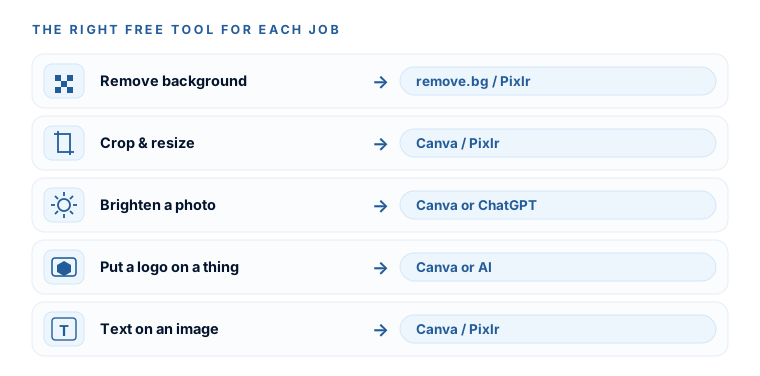
Everything you’ll ever need to do to a business image comes down to five jobs. Not fifty. Five:
- Remove a background — cut a product or a headshot out of its messy setting.
- Crop or resize for a platform — make it exactly 1080 × 1080 for a post, or a wide banner.
- Brighten or clean up a photo — fix dim lighting, even out the color, tidy the clutter.
- Put your logo on a thing — a mug, a sign, a storefront, a shirt.
- Put simple text on an image — a price, a promo line, an address.
The right tool for each job
Match the job to the tool and every one of these becomes a two-minute task. Here’s the whole matrix — it’s the spine of this module, and it’s on your Editing Cheat Sheet at the bottom of the lesson.
| Job | Best free tool | Why / the catch |
|---|---|---|
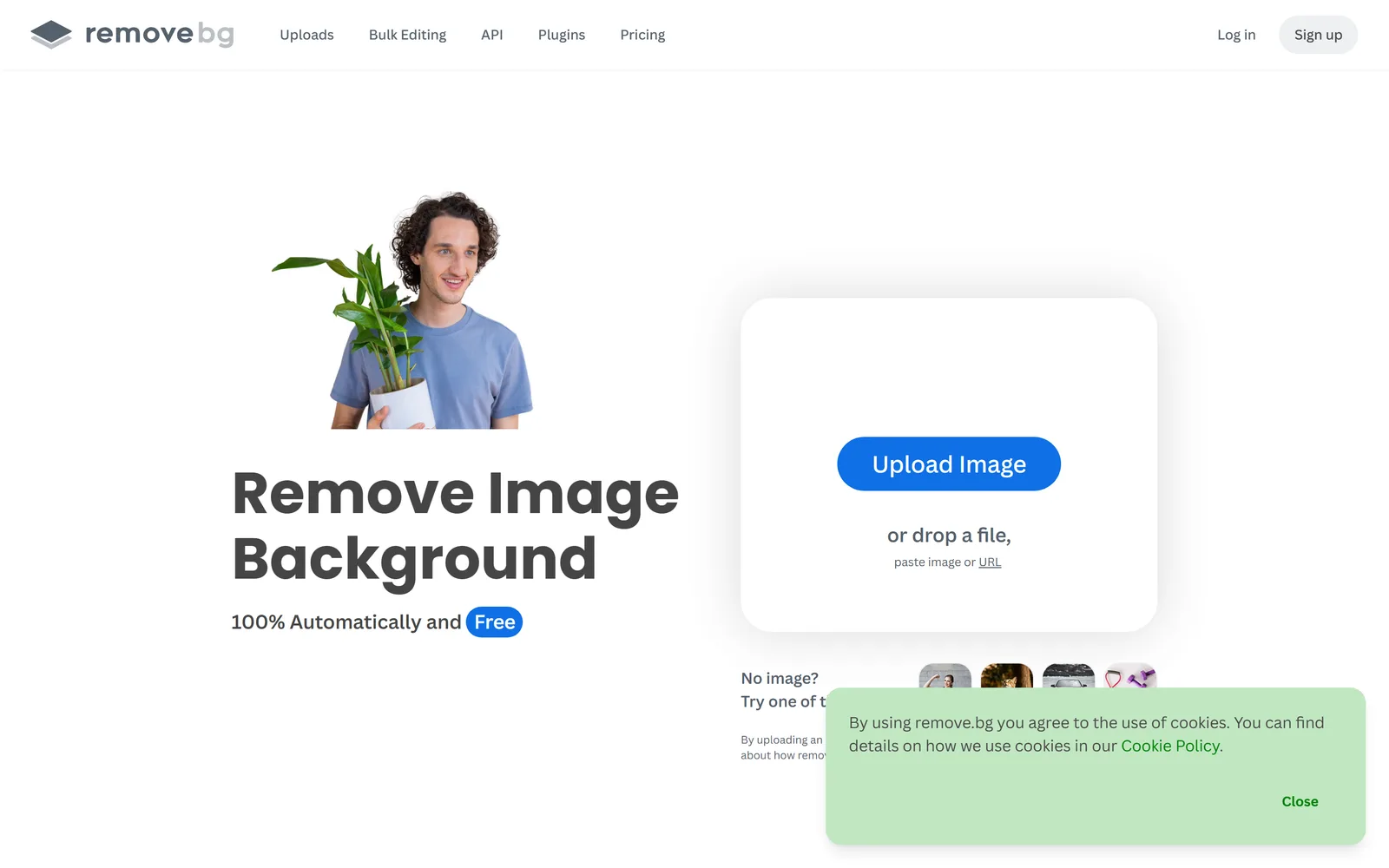
| Remove a background | remove.bg or Pixlr | Not Canva free (it’s Pro); skip Photoroom’s free plan for business — watermark, no licence |
| Crop or resize | Canva custom size | AI cannot reliably hit an exact pixel size |
| Brighten or clean up | Canva Adjust, or describe it to Gemini / ChatGPT | This is where conversational AI genuinely shines |
| Logo on a thing | Canva for an exact placement, AI for photoreal | Check the AI didn’t warp the mark |
| Text on an image | Canva or Pixlr, your font + hex | Never AI — it misspells and can’t match your font |
The two tools that carry most of the load
You could do all five jobs with a single free tool (we’ll get to that), but for most people two familiar tools cover the ground with the least friction:
- Canva (free) — the workhorse layout editor. It’s the one most owners already recognize, and it does four of the five jobs on the free plan: crop and resize, brighten, add a logo, add text. The one gap is background removal (that’s Pro), which is why the matrix routes that job to a free remover instead.
- A conversational AI editor — the “type what you want changed” magic, and honestly the most on-brand skill in this whole course. Free pick: Google Gemini (its image editor is nicknamed “Nano Banana”). Already in your hands: ChatGPT, which you’ve been using since the logo module. Both are perfect for describe-it edits — brighten, restyle, swap a background, drop a product into a scene.
Pixlr Express: the one free tool that does everything
If you’d rather learn a single tool, use Pixlr Express at pixlr.com. In 2026 it’s the best 100%-free, no-account tool that does all five jobs — including background removal with no watermark. Ads, but no watermark, and no login for the basics.
Pixlr comes in two flavors. Pixlr Express is the beginner-friendly one — quick jobs, almost no learning curve. Pixlr E is the deep, Photoshop-like editor with the steep curve. If someone once told you Pixlr “took forever to learn,” they meant Pixlr E. Stay in Express and it’s a first-try win.
Say these to yourself every time, so you never fight the wrong tool:
- Reliable text. AI image editors still misspell words and can’t match your brand font. Add text in Canva or Pixlr, not in the AI.
- Exact pixel sizes. AI won’t reliably output “exactly 1080 × 1080.” Crop or resize in Canva or Pixlr afterward.
Back in Module 3 you removed the background from your logo and turned it into a crisp SVG. That job’s done. The recipes in this module are for every other image you’ll touch — product shots, headshots, promo photos — not your logo. So if “remove a background” feels familiar, that’s why; here it’s aimed at the rest of your pictures.
Your one-page cheat sheet
Keep this beside you for the next two lessons. It’s the whole which-tool-for-which-job matrix plus the five recipes, condensed to a page.
DownloadThere’s no magic all-in-one editor — and you don’t need one. You know which free tool handles each of the five image jobs, which two carry most of the work, and the two things to never ask an AI to do. Next lesson, you’ll actually run each recipe once.
Watch this step
Before the recipes, here's the workhorse tool in action. This calm, absolute-beginner walkthrough shows Canva's photo tools doing four of the five jobs on the free plan — the layout half of your toolkit. It’s from an independent creator — credited below, so go give them a follow.
Canva Photo Editing Tutorial For Beginners: How To Fix Photos Easily
More learning resources
Still want another angle? These are hand-picked and vetted to line up with this lesson — from creators and sites worth your time.